

Today, our team will present a detailed article explaining how to add a playlist on IPTV step by step. We will guide you through all the stages, from opening the app to choosing the playlist method and entering the required information, to help you complete the process easily.
Table of Contents
What is an IPTV playlist?
An IPTV playlist is a file or link that enables users to watch IPTV content on a TV or smart device. An iptv playlist can contain many channel streams in M3U format. Users can add playlists, download free playlists, or find them on GitHub or forum sites. The playlist list helps install and update streams without error and is simple to use.
How to add a playlist on iptv (iOS) :
Now we’re going to give a presentation. We’ll show you how to add a playlist to IPTV across different apps. We’ll start with some iOS apps. We’ll add playlists in several formats, step by step.
Smarters player lite :
Smarters Player Lite is considered one of the best and most user-friendly applications. It supports multiple playlist formats, including M3U and JSON, and provides an enjoyable viewing experience with smooth streaming and high quality.
How to add a playlist :
Let’s start by trying to add a playlist. First, we will download the app from the Apple App Store.

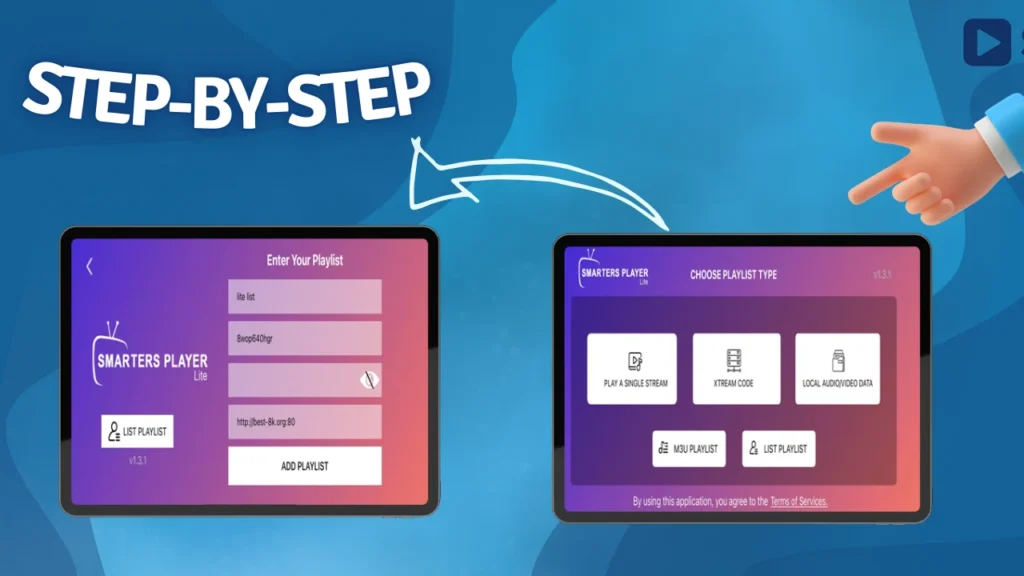
Then we will open the app. Here, the app shows several options for adding a playlist. We will add the playlist using an Xtream Code.
Then we will enter the information we received from the provider. We will enter a name for our playlist, copy the username and password, copy the server URL, and then add the playlist.
To find the best IPTV subscription in the UK, click here.
After adding the playlist, we will wait a few minutes for the content to load.
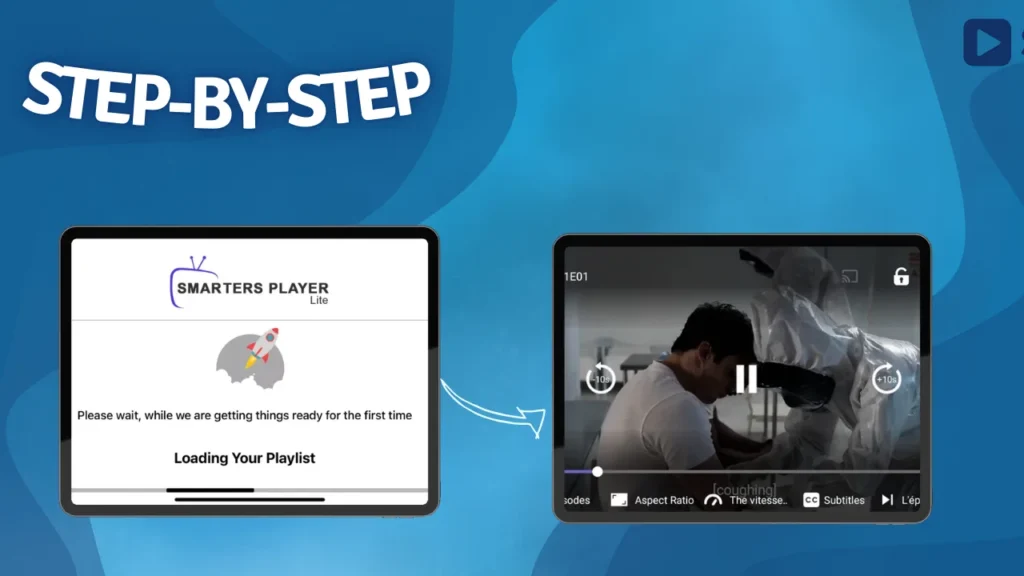
After that, you will find a wide selection of programs, series, and movies available to watch.
GSE Smart IPTV:
GSE Smart IPTV supports API integration for M3U playlists and Xtream Codes, and it also supports 4K quality. In addition, it supports network streams, including live streaming via HTTP, RTSP, and MMS.
How to add a playlist :
Let’s try the GSE Smart IPTV app. First, we will download it from the Apple App Store.
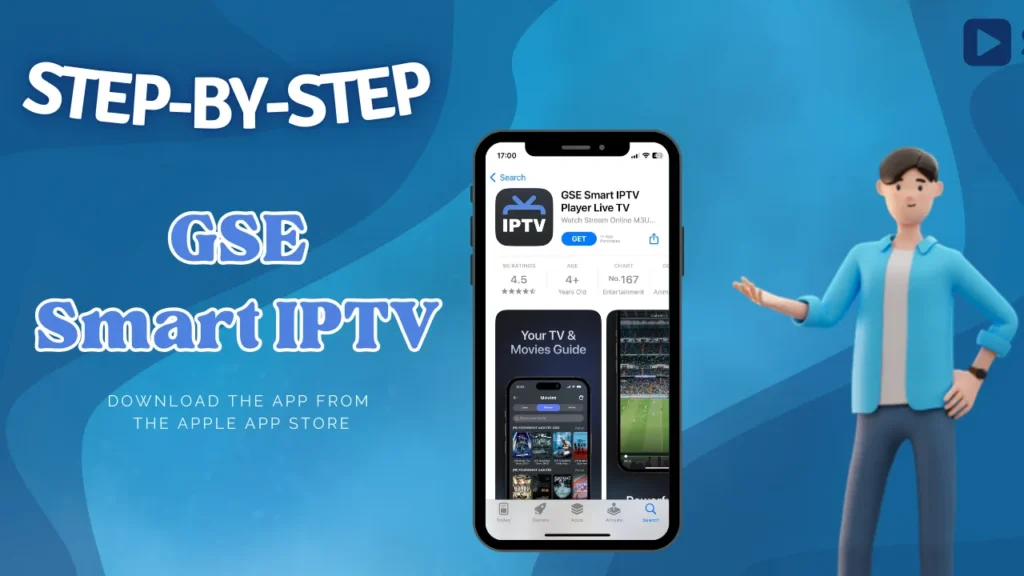
After downloading it, we will open it directly. You will find the Add Playlist option on the app’s main screen, and we will tap on it.
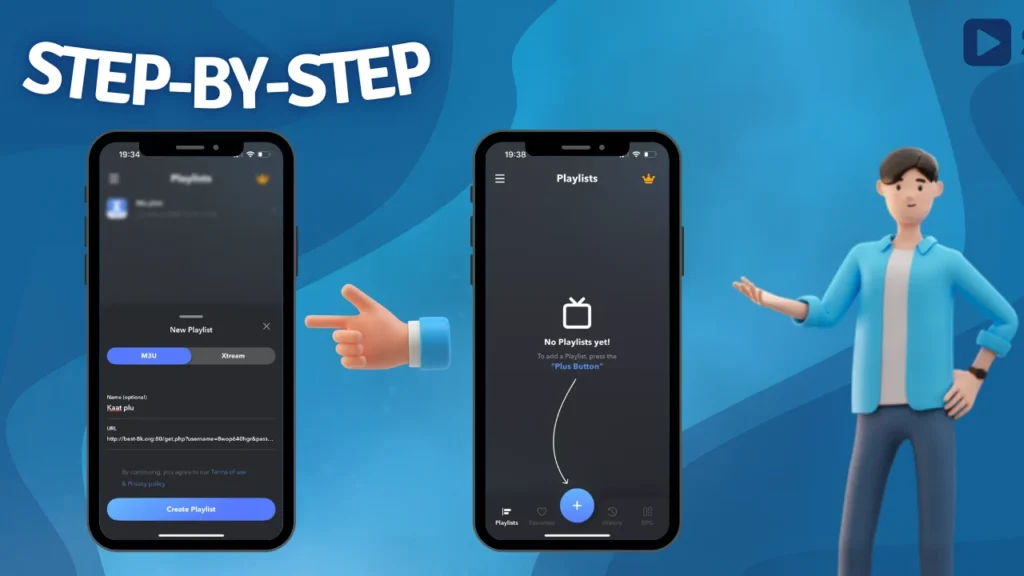
The app offers two options for adding our playlist. We will add the playlist using the M3U format. We will name the playlist, copy the server link we received from the provider, and then add the playlist.

After that, we will wait briefly for the content to load in the app. Once it’s finished, you’ll see the content load successfully and be ready to watch.
iptv stream player :
IPTV Stream Player is a media player that supports major video formats and 4K quality, with subtitles, dual audio, and global search. It does not provide content and requires adding a playlist from an IPTV provider.
How to add a playlist :
We will also download the IPTV Stream Player app and test it. We will download it from the Apple App Store.
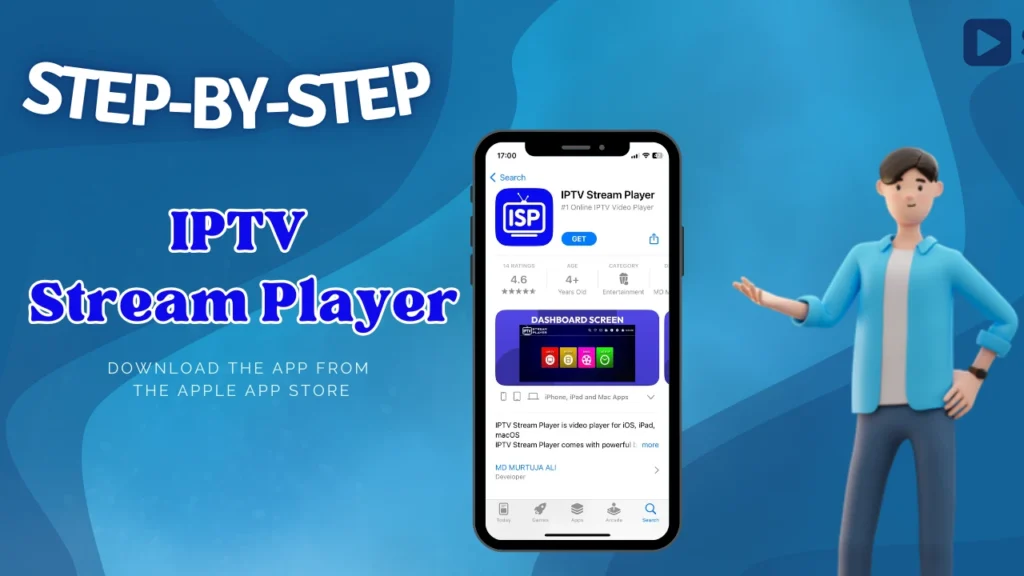
We will also try the IPTV Stream Player app. As the first step to start the test, we will download it from the Apple App Store.
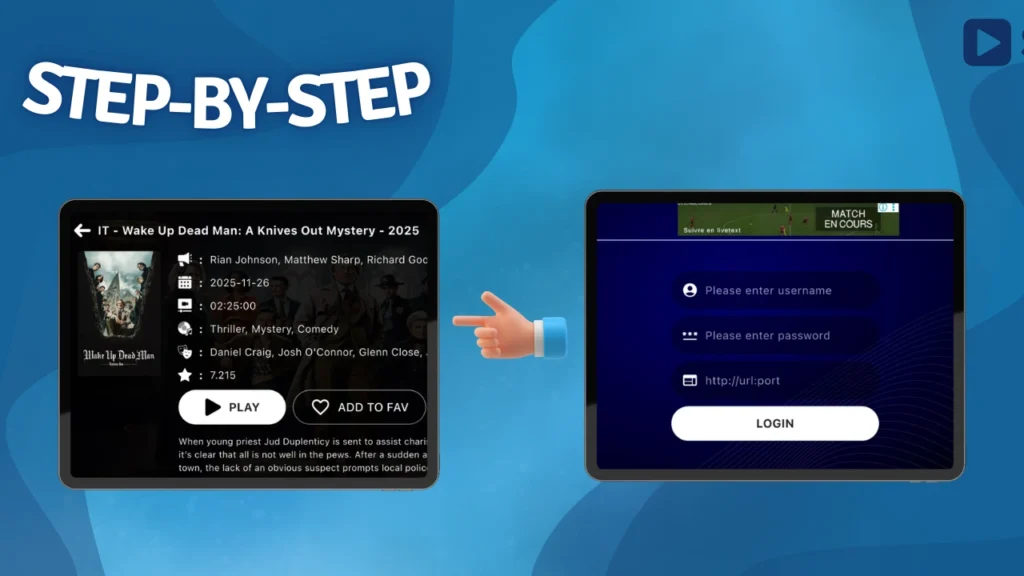
After that, we will open the app. Right away, the app will ask for the Xtream Code information that we previously received from the provider. We will enter the information in the correct fields, then add the playlist.
How to add a playlist on iptv (Android) :
iptv smarters pro :
IPTV Smarters Pro is an IPTV player that supports multiple playlist formats, EPG, and advanced streaming features. It does not include any built-in channels and requires users to add their own IPTV playlist.
How to add a playlist
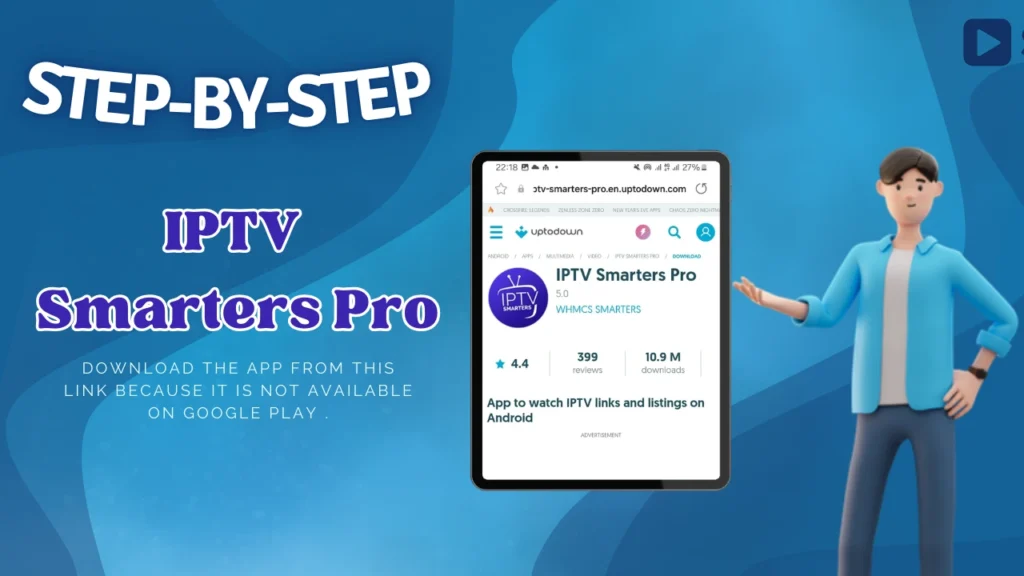
First, we will download the app from this link because it is not available on Google Play or the App Store. After that, we will start testing the app.
After opening the app, we will see several format options for adding a playlist. We will add our playlist using the Xtream Codes format
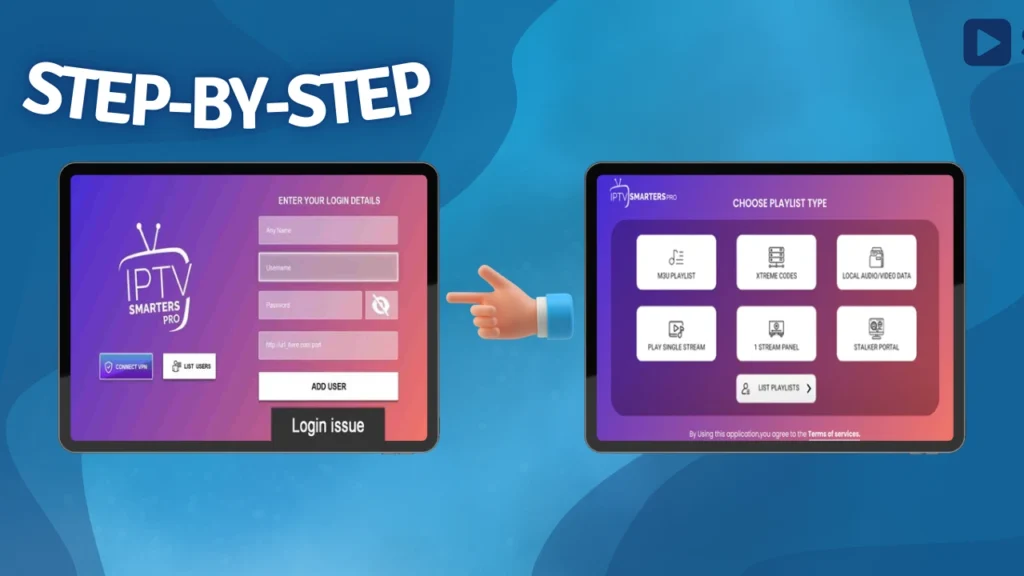
We will fill in the information in the appropriate fields. We will enter a name for our personal playlist, copy the details we received from the provider, the username, password, and server URL and then add the playlist.
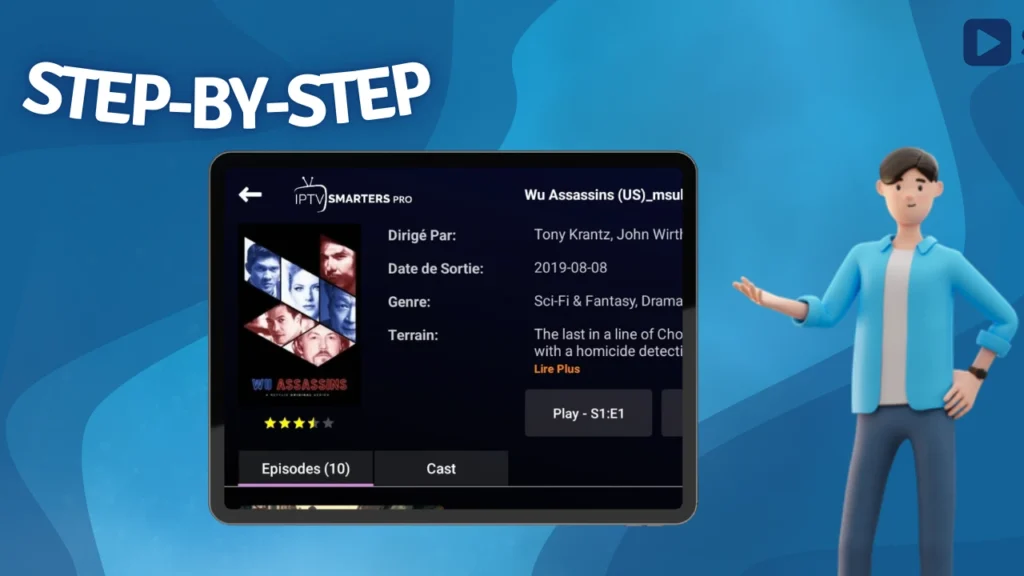
After adding the playlist, we need to wait a few minutes for the content to load. After that, you will find a wide selection of the latest and most popular movies and series ready to watch.
televizo :
Televizo is an IPTV video player for Android devices that supports multiple playlists, EPG, catch-up, Chromecast, search, parental control, subtitles, and audio track selection. It provides no content and requires you to add your own IPTV playlist.
How to add a playlist :
First, we will download our app from the Play Store to test it.
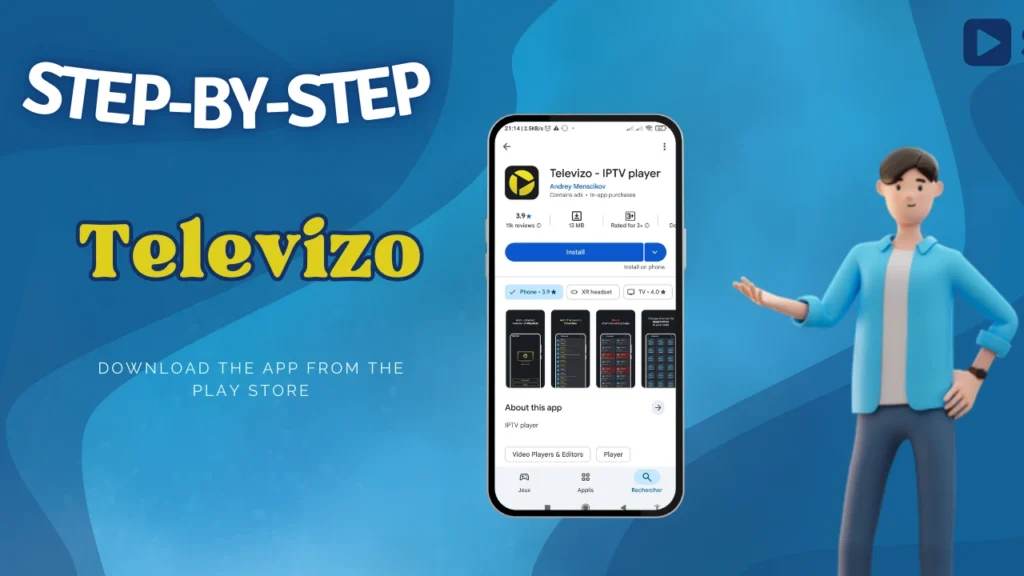
After downloading the app, we will open it. On the main screen, we will see an option to add a playlist. The app supports two playlist formats: M3U and Xtream Codes. We will choose the M3U format.
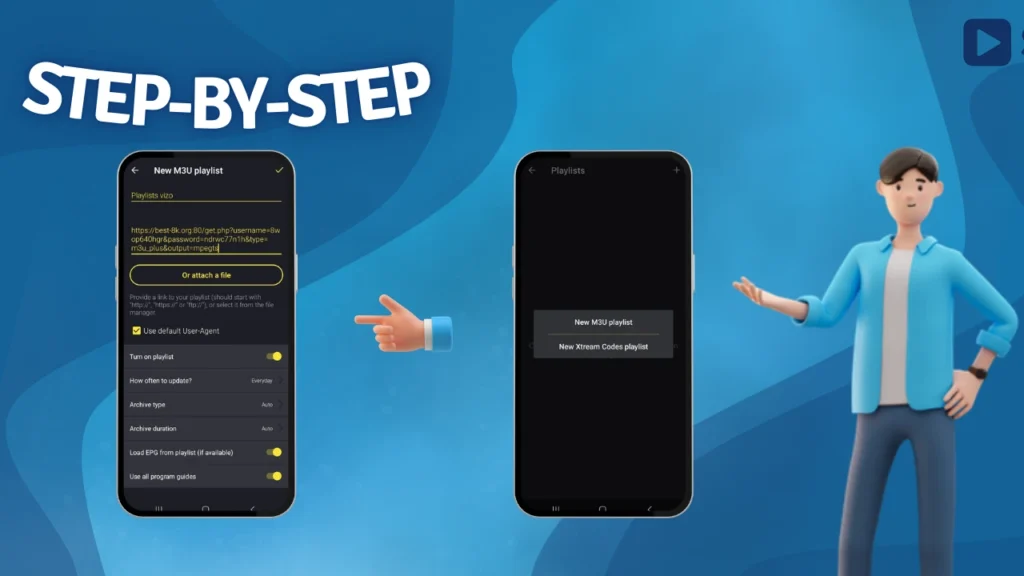
After that, we will fill in the information required for the M3U format. We will name our playlist, copy the server link we received from the provider, and then add the playlist.

We will wait a few minutes for the app to load. After that, you will find various programs available to watch.
iptv :
IPTV is an Android app that lets you watch TV via IPTV playlists. It supports M3U and XSPF playlists, EPG, parental control, and multiple viewing modes. The app does not include built-in channels and requires you to create your own playlist.
How to add a playlist :
We will also try adding a playlist to this app. We will download it from Google Play.
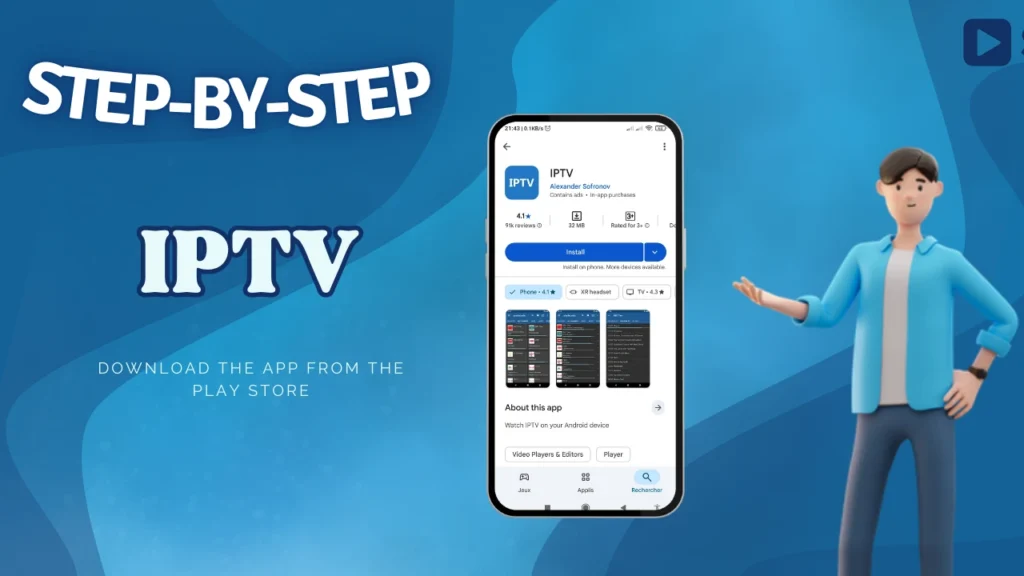
After downloading the app, we will open it and add a playlist. The app supports several methods for adding a playlist. We will add the playlist using the M3U format.
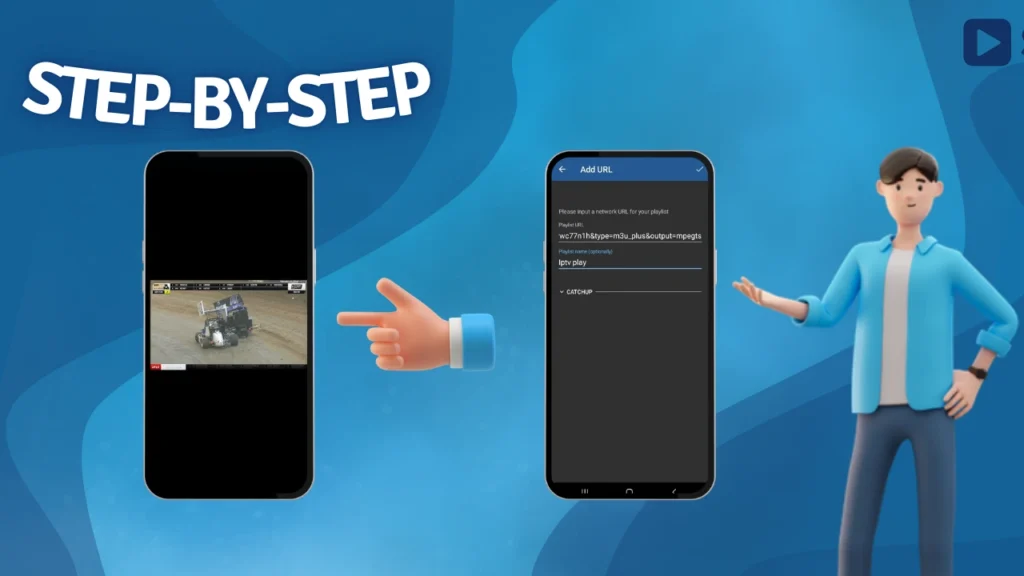
After adding the playlist, we will wait briefly for the content to load in the app. After that, you will find high-quality live streaming available to watch comfortably.
Conclusion
Our team created this article to explain how to add a playlist to IPTV, including on Android and iOS apps. In this example, we want to help you familiarise yourself with new streams for each app setting and section. We hope this guide is useful, and we look forward to your feedback.
